This theme can be configured through _config.yml, and most settings can also be overridden per page.
theme: jekyll-theme-primerpages
Select the default style for your theme by adding style to your config file:
style: sidebar # One of "stacked", "sidebar", "topbar", "appbar"
You can also set the style of a particular page by adding style to its front matter.
---
style: sidebar # One of "stacked", "sidebar", "topbar", "appbar"
---
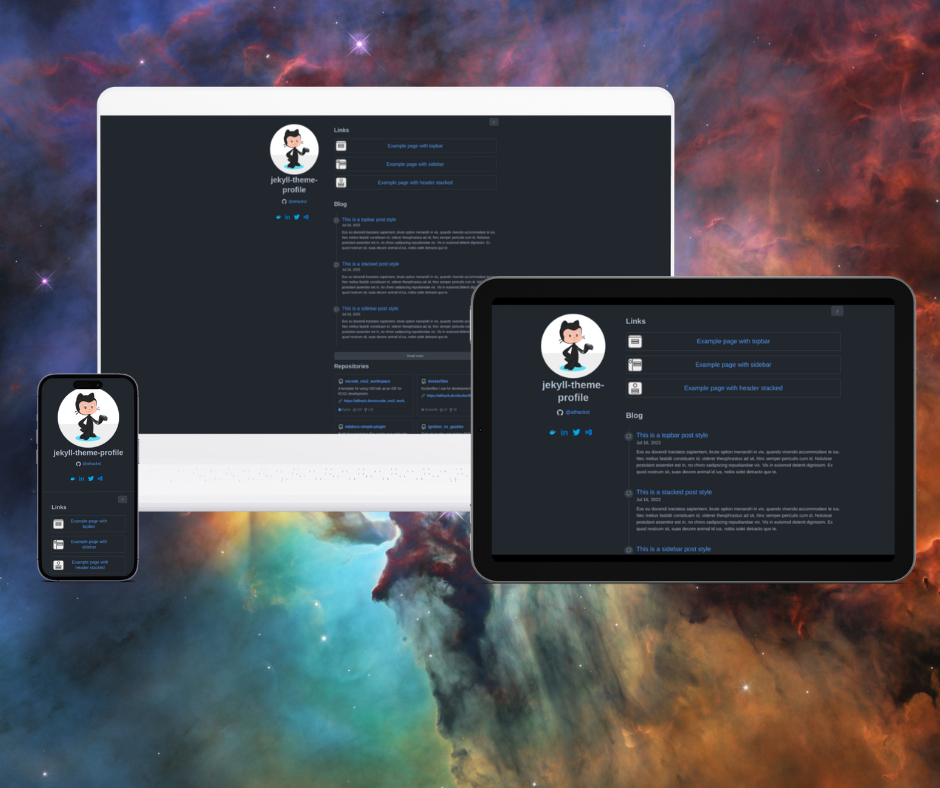
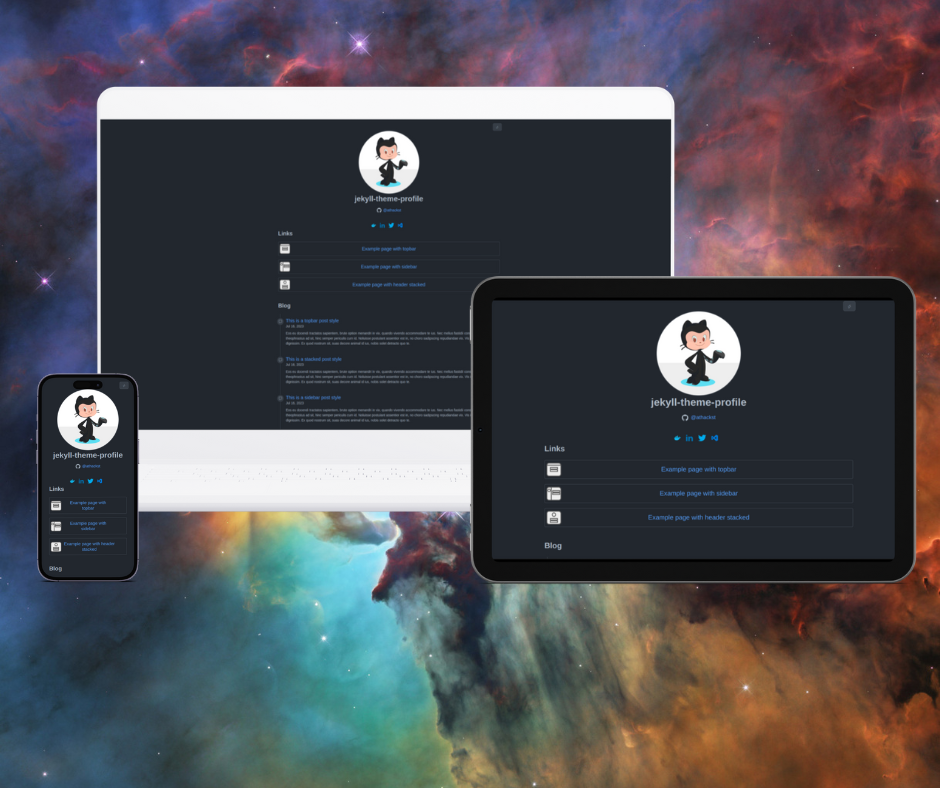
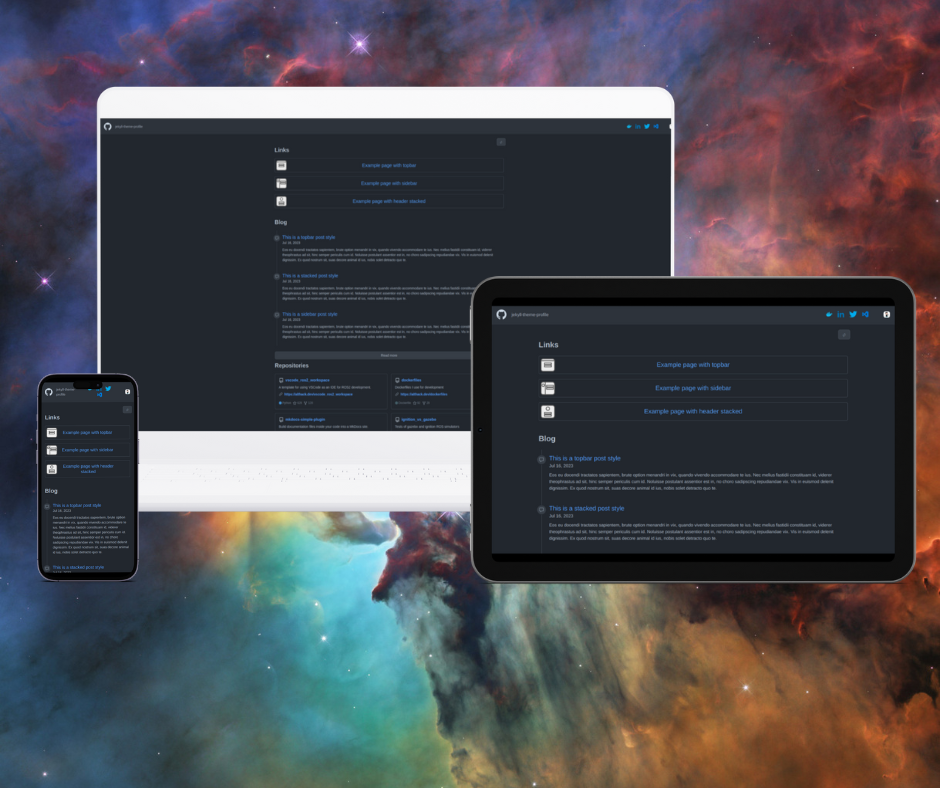
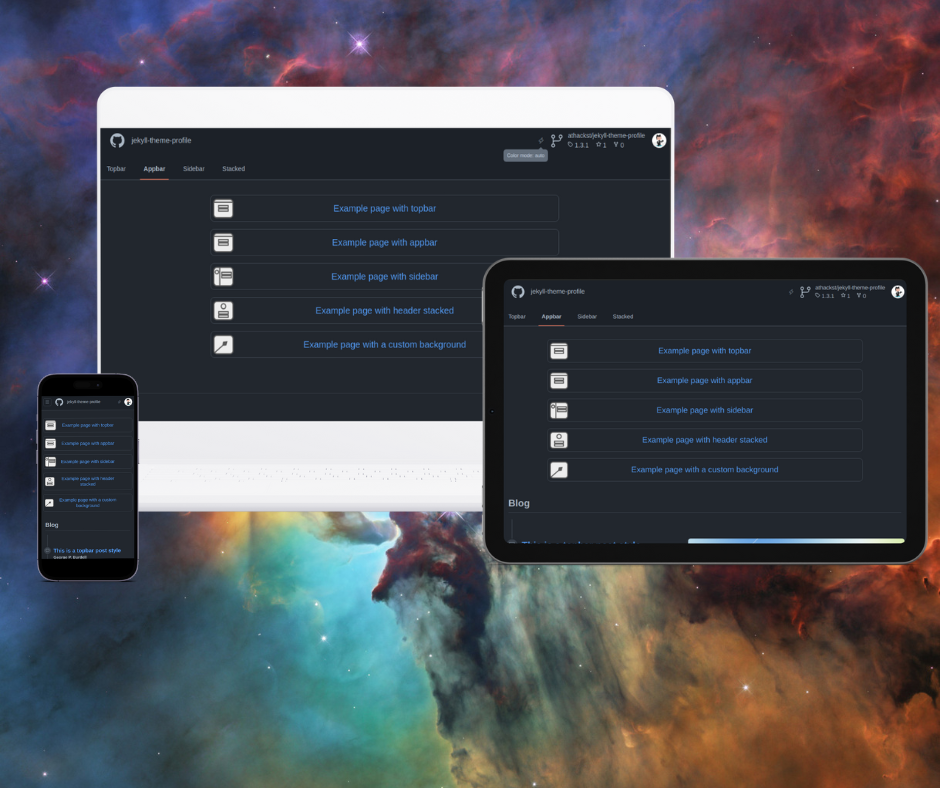
Choosing the right style helps define the user experience and visual flow.
By default, the theme uses your GitHub avatar. You can also set a custom avatar for your site.
user_image: /assets/img/user-image.jpg
If you use the appbar or topbar style, you can control the icon shown next to the site title.
header_icon: favicon # Use "none", "favicon", or an Octicon name like "mark-github"
none hides the icon entirelyfavicon uses site.favicon or site.logoThis setting controls the light and dark color themes for your site. These theme names come from Primer CSS.
# The themes to use for dark and light
dark_theme: dark_dimmed
light_theme: light
You can even change the background by adding the following to your _config.yml file.
background:
  image: /media/background-img.jpg
  overlay: rgba(0, 0, 0, 0.5) # Overlay for both light and dark styles
or set custom overlays for the light and dark themes.
background:
  image: /media/background-img.jpg
  light: # custom overlay for light and dark styles
    overlay: rgba(255, 255, 255, 0.5)
  dark:
    overlay: rgba(0, 0, 0, 0.5)
You can change the header color by adding the following to your _config.yml file or page front matter.
header:
  color: "#4051b5"
  text: "rgba(255,255,255,0.7)"
  accent: "#ffffff"
  image: /media/background-img.jpg
  overlay: rgba(0, 0, 0, 0.5)
color The main background color of the headertext The color of text elements within the headeraccent Controls the color of accent elements such as linksimage Sets an image in the background of the headeroverlay Sets the overlay on top of an image for better visibility of linksThese additional features pull information into your site from your GitHub account.
repository: your-user/your-repo # used by the theme's GitHub-aware features
repo_info: true # Show the information for the source of this project
user_metadata: true # Show the metadata associated with the user
profile_link: true # Show a link to the user's GitHub profile
repository is a theme/GitHub metadata setting, not a core Jekyll settingrepo_info will show the repository information in the header sectionuser_metadata will show metadata associated with your user under your mastheadprofile_link will show a link to your profileYou can set the social media image for your site with the setting
image: /screenshot.jpg
This works both in YAML front matter for a page and in _config.yml. Page settings override site settings.
Set the default for posts through the default settings in the _config.yml file.
defaults:
  - scope:
      path: "" # an empty string here means all files in the project
      type: "posts"
    values:
      layout: "post"
      permalink: /blog/:year/:month/:day/:title.html
      image: /assets/img/default.png # The default image used for social and posts.
      toc: true
Use the social_media section to add links to your social media profiles. For each platform, provide your username or user ID to show the matching icon and link on your profile.

social_media:
  behance: your_username
  dribbble: your_username
  docker: your_username
  facebook: your_username
  github: your_username
  hackerrank: your_username
  instagram: your_username
  keybase: your_username
  linkedin: your_username
  mail: email@address
  mastodon: your_username
  medium: your_username
  stackoverflow: your_user_id
  telegram: your_username
  threads: your_username
  tiktok: your_username
  twitter: your_username
  unsplash: your_username
  vk: your_username
  vscode: your_username
  youtube: your_username
  x: your_username
You can also set the icon color. If you do not set one, the original icon colors are used.
icon_color: "#959da5"
You can add navigation links that will show up in your header bar and in navigation menus.
These will be visible in all pages, and are the main elements in the landing layout.
# Navigation links
nav:
  - name: Posts
    url: /blog
  - name: Categories
    url: /category/
name The name of the linkurl The url of the linkIn the links section, you can add links to showcase various pages on the web or your website.
These will show in home, profile, and linktree layouts.
# List of links for link cards
links:
  - name: All blog posts
    url: /blog
    thumbnail: /assets/img/blog-post-icon.png # optional
  - name: Category
    description: Browse all categories in posts
    url: /category/
    octicon: mark-github
name The name/title to show for the linkdescription (optional) Additional text to show for the linkurl (optional) The URL of the linkthumbnail (optional) The thumbnail image to showocticon (optional) Instead of a thumbnail, use an octicon iconThe repositories section lets you display GitHub repositories on your page. You can sort them by stars or recent pushes, limit how many are shown, and exclude archived, forked, or specific repositories from the list.
These show in the profile and repositories layouts.
# Repositories to show on home page
repositories:
  sort_by: stars # pushed or stars
  limit: 24
  exclude:
    archived: true
    forks: true
    repositories:
      # - list of repositories to exclude
sort_by What to sort repositories by, either latest pushed or number of starslimit Maximum number of repositories to showexclude Repositories to exclude from your siteEach post can show related posts below it. Choose either tags or categories or random or a combination.
related_by: "tags or categories"

